
MMGuardian Parental Control
MMGuardian.comParenting
4.39.74K Reviews
- Version
- 3.7.44
- Installs
- 1.00M
- Age Rating
- Everyone
Screenshots
Our Review of MMGuardian Parental Control
 Analysis by Appyee
Ever tried to keep an eye on your kids’ phone activities without coming off as the ultimate helicopter parent? Let me tell you about my experience with MMGuardian Parental Control, a lifesaver for parents who want to keep a healthy balance between safety and trust.
Getting past the setup stage
MMGuardian Parental Control is a parenting app from MMGuardian.com. It is free to download, carries an Everyone age rating, and has been available since 2013. Its current version is 3.7.38, and it has reached over a million installs. The average rating is 4.2 from around 27,000 ratings, with roughly 9,700 written reviews. Those figures suggest that many families have tried it, but they do not tell you whether its approach will suit your household.
The first decision is not which limits to set; it is what you and your child expect the app to do. A parent looking mainly for a way to set screen-time boundaries may use it differently from someone concerned about location or particular contacts. I would agree on the purpose before installation, then explain which controls you plan to use and why. That conversation makes later adjustments feel less like sudden punishment.
Setup can feel less straightforward if the parent and child are not working from the same understanding of the arrangement. Take a moment to check that you are configuring the intended device and account, and read each in-app instruction rather than rushing through prompts. If a control does not behave as expected, revisit its setting and the relevant device screen before changing several things at once. That makes it easier to identify what actually helped.
Setting Up and First Impressions
Setting up MMGuardian Parental Control was a breeze. I downloaded the app from the Play Store and was pleasantly surprised by the straightforward installation process. The app guides you through each step, making it user-friendly even for those of us who aren’t tech wizards. Once installed, the dashboard opened up a world of possibilities.
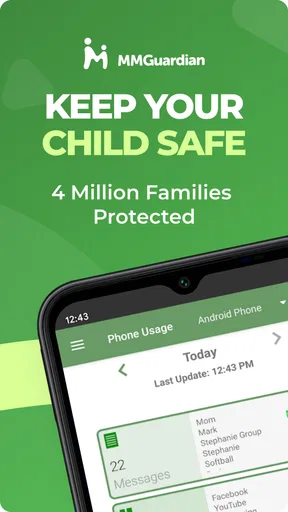
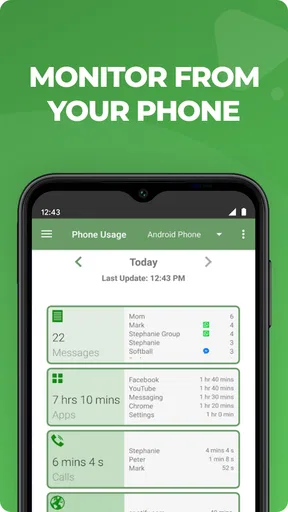
I was greeted with a clean and intuitive interface. The main screen gives you a quick overview of everything you need. It’s like having a cockpit view of your child’s online world, but without the overwhelming controls. From here, I could easily access all the features.
Choosing and using controls with care
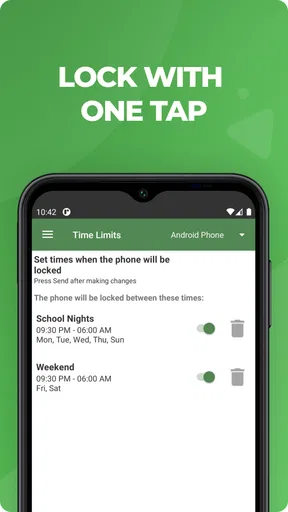
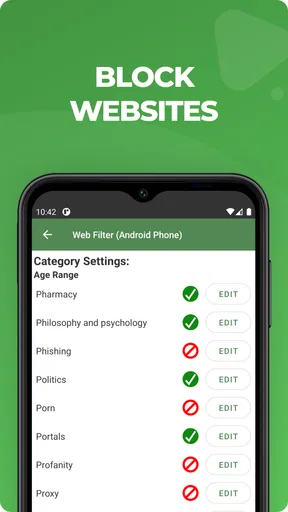
The available controls are most useful when they answer a specific family need. If evenings regularly turn into arguments about scrolling, a screen-time limit can make the boundary more predictable than repeated verbal reminders. If your concern is a particular app, blocking apps may be a more focused response than restricting the whole phone. I would start with one change, discuss it, and see whether it solves the real problem before adding more restrictions.
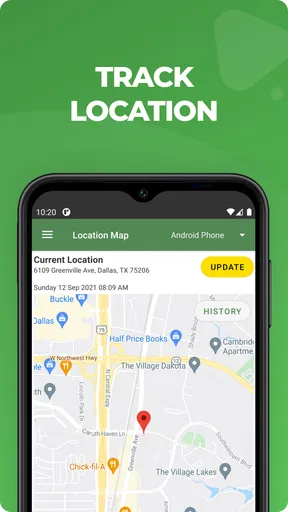
Location tracking is a different kind of tool: it can help a parent check whether a child has arrived where expected, but it should not become a substitute for ordinary communication. A practical routine might be to check location only when a planned arrival is uncertain, rather than repeatedly refreshing it throughout the day. That keeps the feature tied to safety and gives the child room to build independence.
There is also a trade-off in how much monitoring feels appropriate. A family with a younger child may welcome tighter limits and more frequent checks; a teenager may respond better to a smaller number of clearly explained rules. In either case, I would tell the child what is being managed and invite them to raise concerns. A control that is technically effective but constantly damages trust may not be helping the family overall.
Features that Stand Out
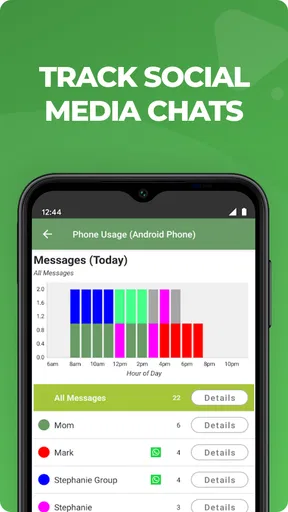
One of the first features I explored was the app and web monitoring. It was reassuring to see a detailed list of apps installed on my child’s device, along with usage data. This way, I didn’t have to guess how much time was spent on TikTok or YouTube.
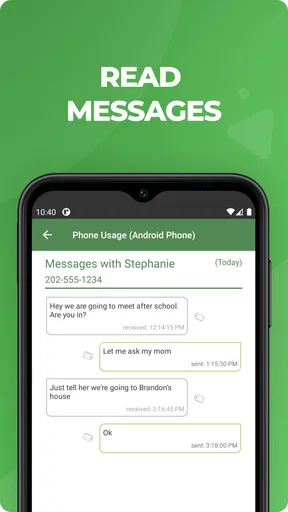
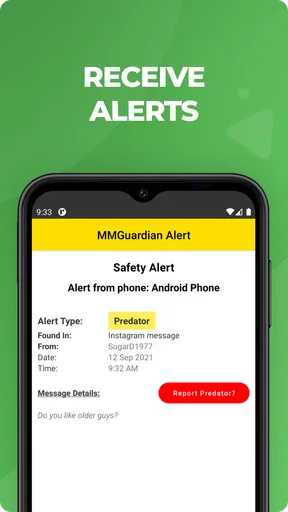
Another fantastic feature is the call and SMS blocking. You can block specific numbers or even set up alerts for suspicious contacts. It’s like having a personal bodyguard for your kid’s phone. Plus, the app allows for customizable screen time limits, which is a game-changer.
With location tracking, I could ensure my child’s safety without sending a dozen “Where are you?” texts. The app provides real-time location updates and even a location history, which is perfect for peace of mind.
Real-world Performance
In real-world usage, MMGuardian delivers on its promises. I noticed an immediate improvement in my child’s phone habits. The app’s gentle reminders about screen time helped establish healthier digital habits.
One feature I particularly appreciated was the detailed activity reports. These reports are like an x-ray of your child’s digital activity. They’re easy to understand and provide insights without being intrusive. It’s like having a conversation starter to discuss online behavior without seeming like Big Brother.
Making reports useful rather than overwhelming
Reports can be more valuable as a prompt for a calm conversation than as a daily scorecard. If usage looks different from what you expected, ask what was happening before deciding that a new restriction is needed. A long session might reflect a practical task or a family arrangement, while a repeated pattern may call for a clearer boundary. The point is to interpret what you see, not assume that every increase is a problem.
For a realistic weekday routine, imagine a child who uses a phone after school and then struggles to put it away at bedtime. I would use the screen-time controls to make the evening expectation consistent, check in together after a few days, and adjust if homework or travel changes the routine. If location is the concern, I would use it for a specific journey rather than treating it as a running conversation. This keeps the app tied to decisions the family can explain.
Compared with relying only on built-in phone settings, a dedicated parental-control app can bring several family controls into one place. Built-in tools may be enough if you only need a basic limit or a simple device-level boundary. MMGuardian is more compelling for a parent who wants a broader set of controls, including app blocking and location tracking. The trade-off is that more oversight requires more setup and more discussion; it is not automatically better just because it offers more ways to intervene.
When a setting seems not to work
If a limit, block, or location check does not match your expectation, resist the urge to change every option at once. Confirm which device you are viewing, check the specific control you meant to apply, and allow yourself to test one adjustment at a time. Then ask your child what they saw on their phone. Their account of the experience can help distinguish a misunderstanding about the rule from a setting that needs attention.
It is also worth separating an app problem from a broader device or routine issue. A child may not see a reminder at the moment you expect, or a location update may not answer the question you had in mind. That does not necessarily mean the whole setup has failed. Recheck the relevant screen and the situation in which the control was used before relying on it for an important decision. For urgent safety concerns, contact your child directly or use the family’s normal backup plan instead of depending on an app alone.
The free download is an easy way to begin evaluating the approach, but some functions may involve in-app purchases ranging from $1.99 to $99.99 per item. I would review the purchase choices shown in the app before building a family routine around a feature. That avoids assuming every control is included at no cost and lets you decide whether the available options fit your budget.
Balancing Act: Parental Control and Trust
Now, let’s talk about something that’s equally important: trust. While MMGuardian Parental Control offers robust features, it also respects the delicate balance between monitoring and privacy. The app promotes open dialogue between parents and kids, encouraging a healthy relationship with technology.
It’s crucial to involve your child in the setup process. This way, they understand what’s being monitored and why. It turns the app from an invasion into a tool for mutual understanding.
That approach also helps clarify who may find this app unsuitable. If your family wants a completely hands-off arrangement, or your child is old enough that broad monitoring would undermine an agreement you already have, a simpler built-in limit or a conversation may be the better choice. Likewise, if all you need is a basic bedtime rule, you may not need a dedicated app with a wider range of controls. I see the strongest case for MMGuardian when parents have a concrete concern and are willing to explain and review the controls with their child.
Final Thoughts
In a world where digital safety is as important as physical safety, MMGuardian Parental Control provides a comprehensive solution. It’s not just about keeping tabs on your child; it’s about creating a safe space for them to explore the digital world responsibly.
Whether it’s managing screen time, monitoring app usage, or ensuring location safety, this app covers all bases. So, if you’re looking for a parental control app that respects your child’s independence while ensuring their safety, give MMGuardian a try. It could be the peace of mind you’ve been searching for.
My practical verdict
I would choose MMGuardian when I want more than a single screen-time switch and can make the controls part of an honest family agreement. Its mix of limits, blocking, monitoring, and location tools gives parents options for different concerns, while the dashboard and reports can help turn vague worries into specific conversations. The key is using those options selectively rather than treating monitoring as a replacement for trust.
If you are deciding whether to try it, start by naming the one issue you want to address, check the available purchase choices, and agree with your child on what will be monitored. Keep a simple alternative in mind for situations where a phone setting or direct check-in is enough. Used with clear expectations, MMGuardian can be a useful parenting aid; used without a shared understanding, even a capable control app can create more friction than reassurance.
Privacy and Permissions
See what permissions an app requests and how it handles your data.
- Wi-Fi connection information
- view Wi-Fi connections
- Other
- view network connections, full network access, use accounts on the device, control vibration, prevent device from sleeping, read Google service configuration
Verdict
Strengths of MMGuardian Parental Control
- Comprehensive monitoring features.
- User-friendly interface.
- Customizable alerts and settings.
- Remote control capabilities.
- Detailed activity reports.
Limitations of MMGuardian Parental Control
- Limited free version features.
- Occasional app stability issues.
- May affect device performance.
- Requires constant internet connection.
- Complex setup for beginners.
Similar Picks in This Category
View All
Family Space
Motorola Mobility LLC.3.9

شرطة الأطفال - مكالمة وهمية
Oub Apps4.1

Findmykids: Parental Control
LETEM LTD4.6

Pregnancy + | Tracker App
Philips Electronics UK Limited4.8

Policía de niños - para padres
Kids police4.7

Pregnancy App
Amila4.9
Frequently Asked Questions
What is MMGuardian Parental Control and how does it work?
MMGuardian Parental Control is an app designed to help parents monitor and manage their children's smartphone usage. It offers features like app blocking, screen time limits, and location tracking. After installing the app on your child's device, you can control settings remotely via a parent dashboard, ensuring safe and responsible device use.
Is MMGuardian Parental Control compatible with both Android and iOS devices?
Yes, MMGuardian Parental Control is available for both Android and iOS devices. However, some features may vary slightly between platforms due to operating system restrictions. It's advisable to check the app's compatibility with your device's specific version to ensure full functionality.
How does MMGuardian ensure my child's data privacy and security?
MMGuardian prioritizes user privacy and security by using encryption to protect data. The app requires user consent and complies with data protection regulations. Parents can access data via a secure login, and the app does not share personal information with third parties without explicit permission.
Are there any costs associated with using MMGuardian Parental Control?
MMGuardian offers both free and premium versions. The free version includes basic monitoring features, while the premium version, available through subscription, provides more advanced functionalities like SMS monitoring and detailed app usage reports. Pricing varies, so it's best to review the latest subscription plans before downloading.
Can MMGuardian Parental Control be easily bypassed by tech-savvy kids?
MMGuardian is designed to be robust against circumvention attempts. While no app is foolproof, MMGuardian regularly updates its security measures to minimize bypass risks. It's important for parents to have open conversations with their children about the app's purpose and benefits to foster cooperation and understanding.
